How to Uninstall Apps on Mac and Check Leftovers
Learn how to safely uninstall apps on Mac using Launchpad, Finder, or the official uninstaller, then check leftover files without deleting shared data.
Direct answer
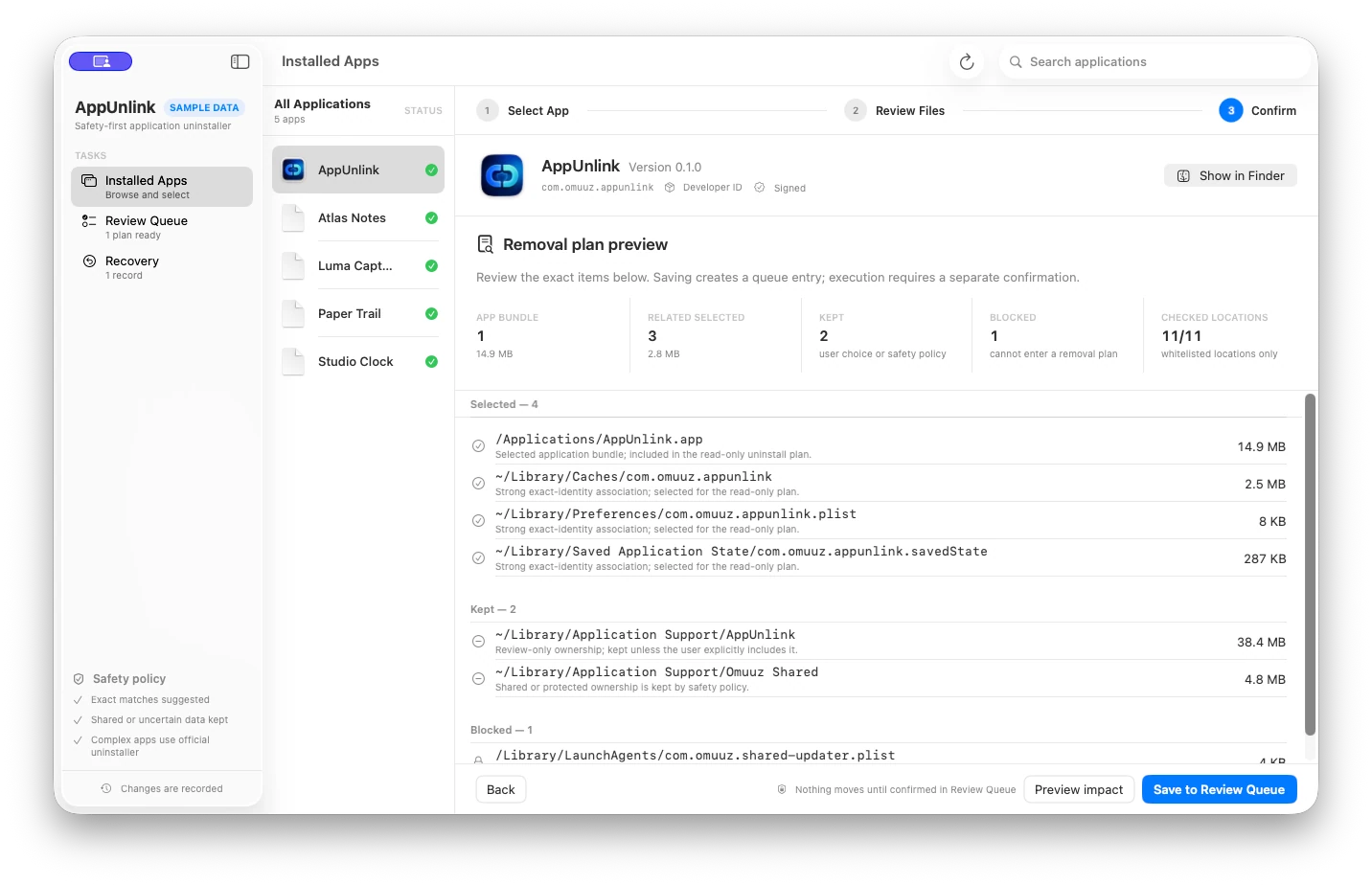
To uninstall an app on Mac safely, quit it and identify the supported removal method before deleting anything. Use the app’s own uninstaller for drivers, extensions, security software, or privileged helpers. An App Store app without a separate uninstaller can be removed with Launchpad or Finder; for an ordinary app with no uninstaller, Apple directs users to Finder > Applications and then Trash. Test the Mac before emptying Trash. Treat leftover files as a separate review: require exact path and app-identity evidence, and keep shared, protected, unreadable, contradictory, or name-only matches. AppUnlink can grade supported related files and prepare reversible Trash actions, but it cannot replace a vendor uninstaller, bypass macOS protections, or guarantee that every leftover has been found.
When this guide applies
- You want to remove an ordinary Mac app without deleting unrelated support files.
- An app left preferences, caches, containers, or helper components after the main bundle was removed.
- You need a reversible review process and a record of what was selected or kept.
Step-by-step review
Read the developer’s removal instructions
Use an official uninstaller when the app installs system extensions, drivers, privileged helpers, security components, or managed services.
Preserve user data and licenses
Export documents, record account or license details, and confirm whether removing support data would erase settings or local libraries.
Quit the app and related processes
Close the app normally and stop its supported helper workflow before moving the bundle.
Use a reversible first action
For an ordinary app, move the application bundle to Trash and test the Mac before emptying Trash.
Review related files by evidence
Prefer exact bundle identifiers, signing identity, known containers, and supported paths. Keep shared, contradictory, protected, and name-only candidates.
Technical context
Choose the removal method before deleting anything
Use the vendor’s uninstaller when one is provided for system-level components. Use Finder for an ordinary self-contained app. Review support files separately only when you need to remove app-specific settings or reclaim their space.
The app bundle is not always the whole product
Sandbox containers, Application Support, preferences, caches, login items, extensions, and shared App Groups can outlive the main bundle for legitimate reasons.
Identity is stronger than filename similarity
Bundle identifiers, Team ID, signatures, entitlements, and exact container paths provide better evidence than a human-readable app name.
Shared data must remain shared
An App Group or support folder with another known consumer cannot be treated as exclusive to the selected app.
Which Mac uninstall method should you use?
| App situation | First method | Leftover-file decision |
|---|---|---|
| App Store app with no separate uninstaller | Quit it, then use Launchpad or Finder to move it to Trash. | Test the app’s documents and related workflows before emptying Trash. |
| The developer provides an uninstaller | Follow the developer’s documented uninstaller or in-app removal flow. | Do not manually remove system components the uninstaller owns. |
| Ordinary app with no uninstaller | Quit it, then move the app from Finder > Applications to Trash. | Test normal Mac workflows before separately reviewing app-specific support files. |
| App uses shared containers or helpers | Identify every known consumer and use the owning product’s supported workflow. | Keep shared, protected, unreadable, contradictory, and name-only matches. |
Questions Mac users repeatedly ask about uninstallers
Independent Reddit discussions repeatedly compare uninstallers by completeness, false positives, vendor-specific removal, and recovery. The safest answer is not to maximize the deletion count, but to choose the supported uninstall method first and require evidence for every additional file.
Should the best Mac uninstaller remove the most files?
No. A larger candidate count can include false positives, shared data, or files that only contain a similar name. Judge an uninstaller by ownership evidence, review clarity, exclusions, and whether the first action is recoverable.
Can a generic Mac uninstaller remove everything?
No generic tool can guarantee complete removal. Use the developer's own uninstaller for privileged helpers, drivers, system extensions, security software, and other components it owns. Keep unreadable, protected, shared, contradictory, and name-only matches.
What if the app bundle was deleted before its leftovers were reviewed?
Treat orphan cleanup more conservatively. Without the original bundle, identity signals such as its exact bundle identifier, signature, Team ID, and entitlements may be unavailable, so filename similarity alone is not enough proof to delete a file.
These are community problem signals, not endorsements: the linked discussions do not mention or endorse AppUnlink. Apple documentation remains the primary source for the supported uninstall workflow.
Risks and actions to avoid
Do not remove security or system components manually
Bypassing an official uninstaller can leave services registered, break networking or security workflows, or require recovery steps.
Do not treat caches as automatically safe
A cache may be disposable, but path ownership, active use, recovery behavior, and the developer’s supported workflow still matter.
Do not empty Trash immediately
Trash is the simplest recovery path for an ordinary bundle. Test launch, login, networking, and related workflows before making removal irreversible.
What the Omuuz product can—and cannot—do
What it can do
AppUnlink can inspect a selected app’s identity, enumerate supported related locations, grade relationships, keep coverage gaps visible, and produce a reviewable removal plan with reversible Trash actions.
What it cannot do
AppUnlink cannot replace a vendor-specific uninstaller, prove ownership from a name alone, remove known shared containers, bypass macOS protections, or guarantee that every leftover file has been found.
Product evidence