How to trim MP4 or MOV without re-encoding
Select one continuous range, review safe GOP boundaries, verify copied samples, and deliver a new clip without another encode.
Direct answer
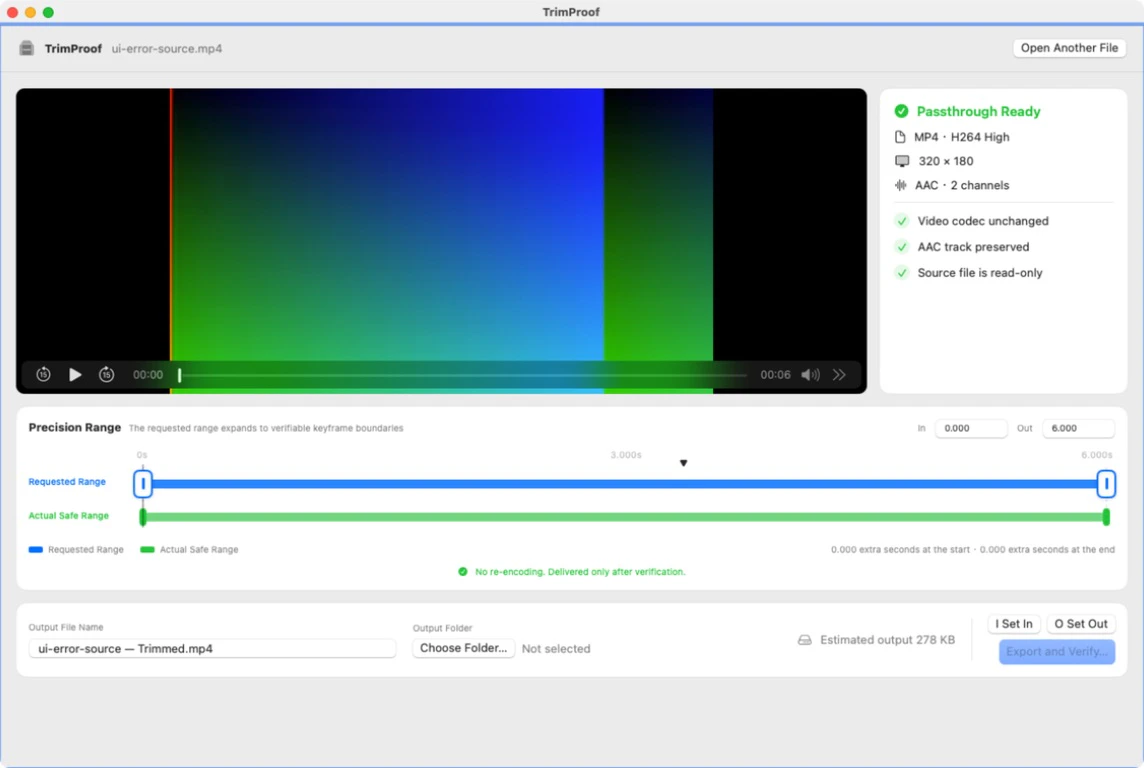
Open one supported local MP4 or MOV, set a continuous range, and review the GOP-aligned safe range. TrimProof copies compressed samples, verifies the result, and only then delivers the new clip to your chosen destination.
When this guide applies
- Remove an unwanted beginning or ending without another lossy encode.
- Extract one continuous passage while preserving the source codec.
- Require copied-media checks before a clip is delivered.
Step-by-step review
Open one local file
Choose an MP4 or MOV that passes TrimProof's container, track, codec, profile, and color preflight.
Set the requested range
Move the in and out points around the one continuous section you want to keep.
Review the safe range
Compare your request with the full-GOP range that can be copied without re-encoding.
Choose a new destination
Pick a writable path that does not already exist; TrimProof does not overwrite files.
Wait for verified delivery
Treat the result as complete only after payload, timeline, edge-decode, and source-identity checks pass.
Technical context
Passthrough preserves compressed media
Supported video and optional AAC samples are copied instead of decoded and encoded again.
Safe cuts follow dependency boundaries
Inter-frame video can depend on earlier samples, so the deliverable interval may extend beyond the requested timestamps.
Delivery is the final step
A hidden partial output is verified before it is atomically promoted to the selected destination.
Risks and actions to avoid
Do not expect arbitrary-frame precision
Exact-frame cuts can require re-encoding; TrimProof deliberately preserves compressed samples.
Playable does not mean supported
Extra tracks, HDR, DRM, fragmentation, or unsupported profiles are rejected.
Keep the source until review
Compare the verified result before independently managing the untouched source.
What the Omuuz product can—and cannot—do
What it can do
TrimProof can passthrough-trim one supported MP4 or MOV into one continuous, GOP-safe clip and verify it before delivery.
What it cannot do
It cannot join clips, make multiple cuts, overwrite a destination, transcode unsupported media, or promise arbitrary-frame boundaries.
Product evidence